Download PhotoGIMP
Free download for Windows, macOS, and Linux
Windows
Windows 10 / 11
macOS
macOS 12+
Linux
Flatpak / Snap / System
All downloads are from GitHub Releases — the official source. No wrappers, no bundled software.
⚠️ Before You Start
1. Install GIMP 3.0+
PhotoGIMP 3 only works with GIMP 3.0 or newer. It does NOT work on GIMP 2.10.
Download GIMP from gimp.org →2. Run GIMP Once
Open GIMP, wait for it to fully load, then close it. This creates the config folders PhotoGIMP needs to overwrite.
3. Back Up Settings (Optional)
If you have custom GIMP settings, back them up first. PhotoGIMP overwrites layout, shortcuts, and theme files.
Your brushes, fonts, and plug-ins are NOT affected.
📋 Installation Guide
Choose your operating system. Installation takes about 2 minutes.
🪟 Install on Windows
%APPDATA%\GIMP\3.0 - Download PhotoGIMP.zip
Click here to download or use the button above.
- Extract the ZIP
Right-click the downloaded file → "Extract All" → choose any folder (e.g. Desktop).
- Open GIMP's config folder
Press Win+R → type %APPDATA%\GIMP → press Enter.
- Copy the 3.0 folder
From the extracted files, copy the entire 3.0 folder and paste it into %APPDATA%\GIMP\.
- Replace existing files
When prompted "The destination already has a file named...", choose "Replace the files in the destination".
- Open GIMP — done! 🎉
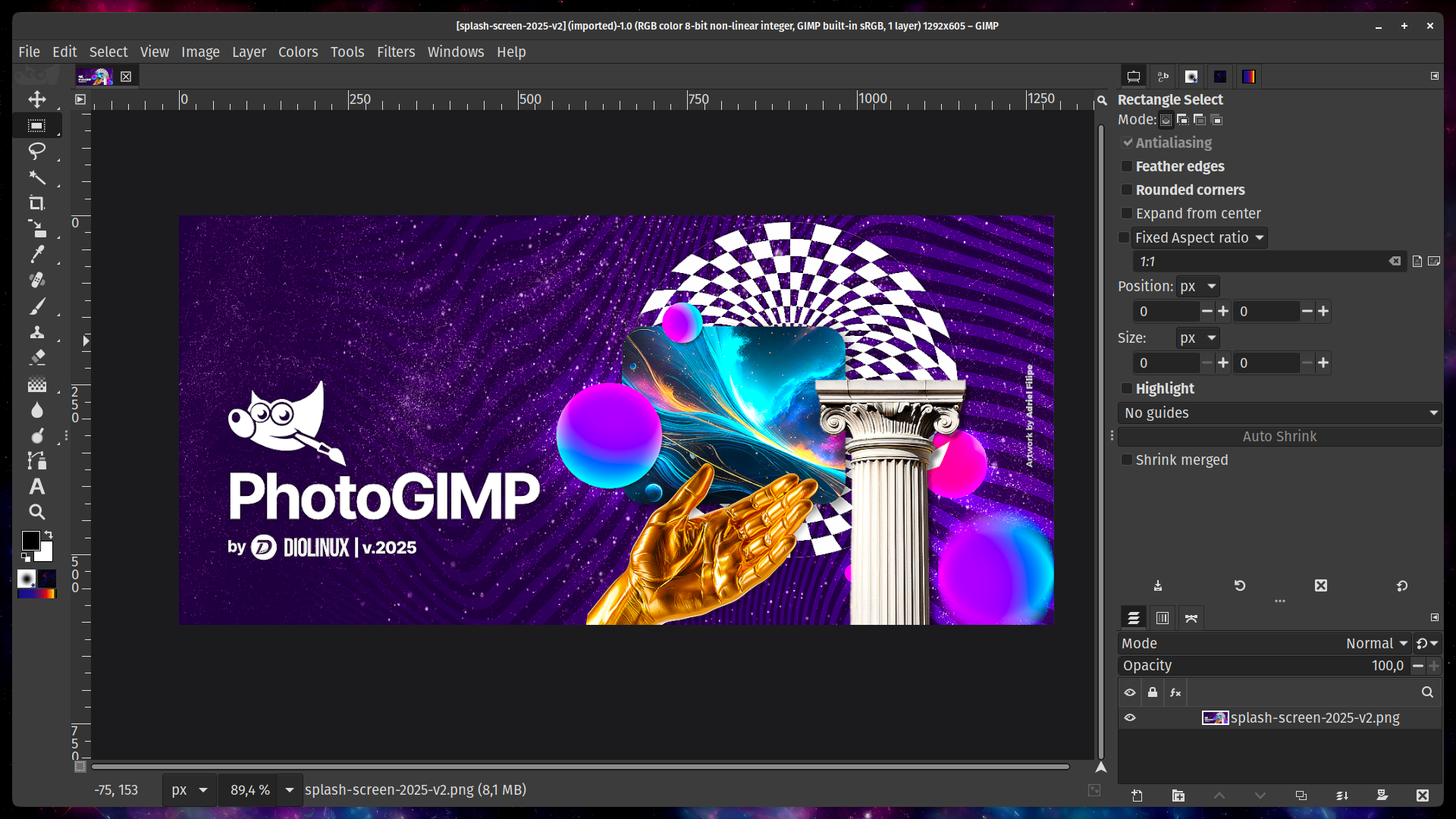
You should see the PhotoGIMP layout, dark theme, and Photoshop shortcuts.
❓ Windows Troubleshooting
GIMP looks the same after installing: Make sure you pasted the 3.0 folder inside %APPDATA%\GIMP\ (not inside the existing 3.0 folder, creating 3.0\3.0). The correct path is %APPDATA%\GIMP\3.0\shortcutsrc.
Errors when opening GIMP: You're likely using GIMP 2.10. PhotoGIMP 3 only supports GIMP 3.0+. Upgrade at gimp.org.
Chocolatey alternative: choco install photogimp (community package).
🍎 Install on macOS
~/Library/Application Support/GIMP/3.0 - Download PhotoGIMP.zip
- Extract the ZIP file
Double-click the .zip to extract. You'll get a folder with a 3.0 directory inside.
- Open GIMP's config folder
In Finder: press Cmd+Shift+G → paste: ~/Library/Application Support/GIMP → press Enter.
Can't see the Library folder? Hold Option while clicking the "Go" menu in Finder.
- Delete old 2.10 folder (if exists)
If you see a 2.10 folder from a previous GIMP version, delete it to avoid conflicts.
- Paste the 3.0 folder
Copy the extracted 3.0 folder into the GIMP directory. Choose "Replace" or "Merge" when prompted.
- Open GIMP — done! 🎉
❓ macOS Troubleshooting
"You don't have permission": Right-click the GIMP folder, choose Get Info, then under Sharing & Permissions unlock with your admin password and set Read & Write.
Library folder not visible: In Finder, press Cmd+Shift+. (period) to show hidden files. Or use Go to Folder (Cmd+Shift+G) and paste the path directly.
🐧 Install on Linux
Important: The config path depends on how you installed GIMP:
| Installation Method | Config Path |
|---|---|
| Flatpak (Recommended) | ~/.var/app/org.gimp.GIMP/config/GIMP/3.0 |
| Snap | ~/snap/gimp/current/.config/GIMP/3.0 |
| System (apt/dnf/pacman) | ~/.config/GIMP/3.0 |
Flatpak Installation (Recommended)
- Install GIMP from Flathub
flatpak install flathub org.gimp.GIMP - Run GIMP once, then close it
- Download and extract
wget https://github.com/Diolinux/PhotoGIMP/releases/download/3.0/PhotoGIMP-linux.zip
unzip PhotoGIMP-linux.zip -d ~/
This places files into ~/.config and ~/.local. Press Ctrl+H in your file manager to see hidden folders.
- Overwrite when prompted
- Open GIMP — done! 🎉
On Linux, PhotoGIMP also installs a custom .desktop file and icon, so it appears as "PhotoGIMP" in your app menu.
System Package (apt/dnf/pacman)
If you installed GIMP via your distro's package manager, the Linux ZIP automatically targets ~/.config/GIMP/3.0. Same steps as above — extract to your home folder.
❓ Linux Troubleshooting
Can't see hidden folders: In your file manager, press Ctrl+H. In terminal, use ls -la ~/.
Nothing changed after extracting: Check you're targeting the correct config path for your install method (Flatpak vs system package). Use find ~ -name "gimprc" 2>/dev/null to locate GIMP's config.
Snap GIMP: Snap uses ~/snap/gimp/current/.config/GIMP/3.0. You'll need to manually copy files there.
🗑 Uninstall & Restore
Want to go back to default GIMP? Delete the config folder and GIMP will recreate fresh defaults on next launch.
Windows
Win+R → %APPDATA%\GIMP → Delete the 3.0 folder → Reopen GIMP.
macOS
Finder → Cmd+Shift+G → ~/Library/Application Support/GIMP → Delete the 3.0 folder → Reopen GIMP.
Linux
rm -rf ~/.config/GIMP/3.0For Flatpak: rm -rf ~/.var/app/org.gimp.GIMP/config/GIMP/3.0
Or restore your backup: paste your backed-up 3.0 folder back to the original location.
📋 Version History & Compatibility
| PhotoGIMP | Required GIMP | Release Date | Status |
|---|---|---|---|
| 3.0 | GIMP 3.0+ | March 18, 2025 | Current |
| 2.0 (Legacy) | GIMP 2.10.x | 2020 | Unmaintained |
PhotoGIMP 3.0 changelog: Complete rewrite for GIMP 3.0 API, new splash screen, updated Photoshop CC-compatible shortcuts, dark theme CSS, maximized workspace. View full release notes on GitHub →