PhotoGIMP vs GIMP
What changes when you apply the PhotoGIMP patch
PhotoGIMP is not a different program — it's GIMP with a configuration swap. After applying the patch, GIMP looks and feels different, but it's still the same engine underneath. Here's what actually changes.
Visual Comparison
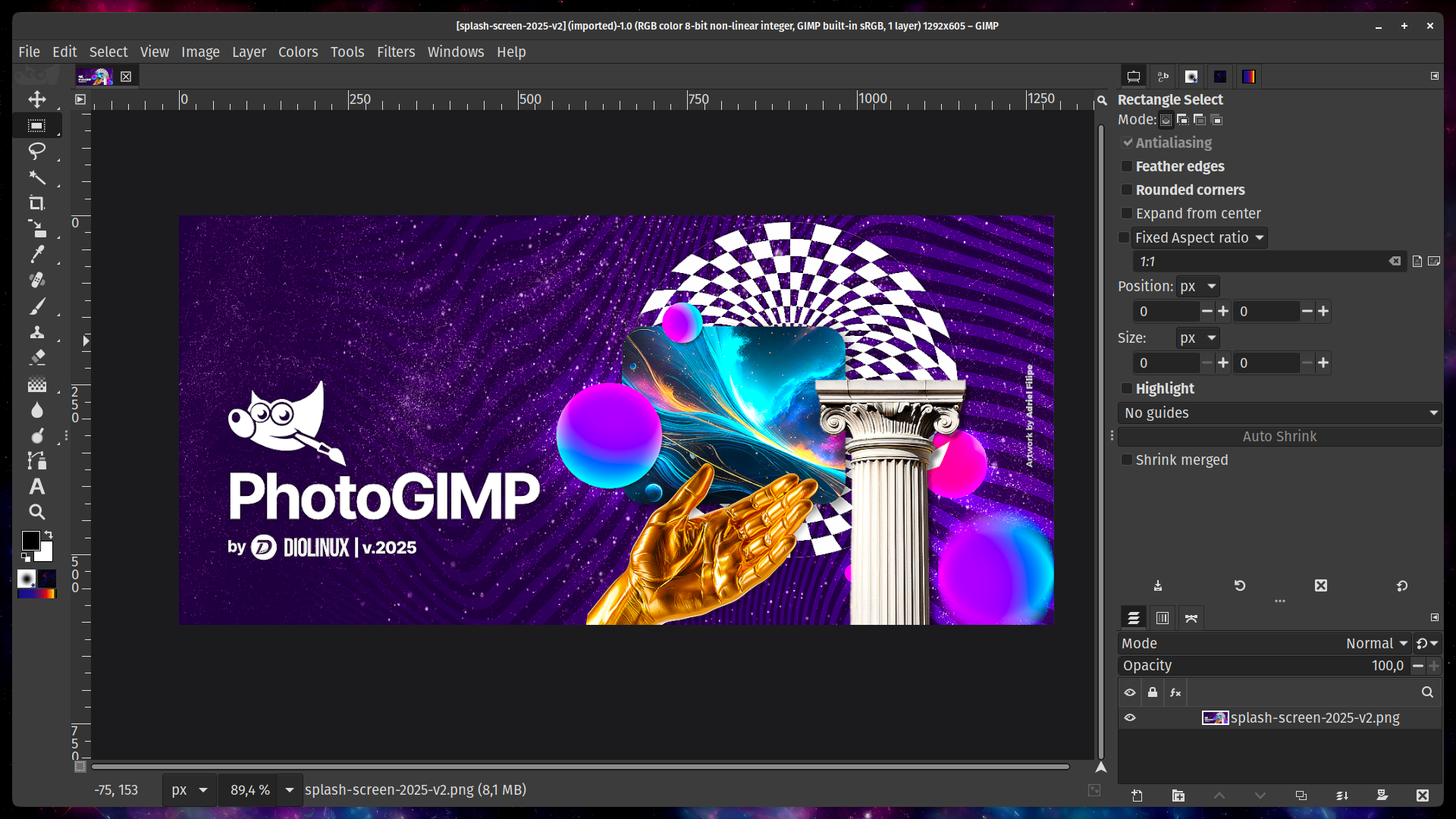
Standard GIMP interface with default tool layout, system theme, and GIMP-specific shortcuts.
PhotoGIMP applied — dark theme, Photoshop-style layout, reorganized toolbox, maximized canvas.
What Changes (and What Doesn't)
| Aspect | GIMP Default | With PhotoGIMP |
|---|---|---|
| Window Layout | Multi-window or single-window with default panel positions | Single-window, Photoshop-style panels (Layers/Channels right, Toolbox left) |
| Keyboard Shortcuts | GIMP defaults (e.g., Q for Align, U for Fuzzy Select) | Photoshop-mapped (e.g., Ctrl+T for Transform, Ctrl+J for Duplicate Layer) |
| Tool Order | Alphabetical / GIMP traditional ordering | Grouped like Photoshop (Move, Select tools, Crop, Paint, Text, etc.) |
| Theme | System theme (usually light on Windows/macOS) | Custom dark theme with gray panels and dark canvas background |
| Canvas Settings | Default grid, guides, and snapping | Optimized for maximum workspace — fewer visible UI elements |
| Splash Screen | GIMP Wilber mascot | Custom PhotoGIMP splash (by Adriel Filipe Design) |
| App Name (Linux) | "GNU Image Manipulation Program" | "PhotoGIMP" with custom icon in app menu |
| Canvas Templates | Default sizes (A4, US Letter, etc.) | Additional templates optimized for common tasks |
What Stays Exactly The Same
PhotoGIMP only touches config files. Everything below is unchanged:
🔧 All GIMP Features
Every tool, filter, and function works identically. Nothing is removed or disabled.
🖌️ Brushes & Fonts
Your custom brushes, patterns, gradients, and fonts are untouched.
🔌 Plugins & Scripts
All GIMP plugins (Script-Fu, Python-Fu) continue to work normally.
📁 File Support
All supported formats (PSD, TIFF, PNG, JPEG, WebP, etc.) work the same.
⚡ Performance
No performance impact — PhotoGIMP is just text config files, not code.
🔄 Updates
GIMP updates normally. You may need to re-apply PhotoGIMP after major GIMP updates.
Shortcut Differences (Top 10)
Here's the most impactful changes — the shortcuts Photoshop users reach for most often:
| Action | GIMP Default | PhotoGIMP |
|---|---|---|
| Free Transform | Shift+T | Ctrl+T ✓ |
| Duplicate Layer | Ctrl+Shift+D | Ctrl+J ✓ |
| Deselect | Ctrl+Shift+A | Ctrl+D ✓ |
| New Layer | Ctrl+Shift+N | Ctrl+Shift+N |
| Invert Selection | Ctrl+I | Ctrl+Shift+I ✓ |
| Flatten Image | — | Ctrl+Shift+E ✓ |
| Merge Down | — | Ctrl+E ✓ |
| Fill | — | Shift+F5 ✓ |
| Zoom to Fit | Shift+Ctrl+J | Ctrl+0 ✓ |
| Save As/Export | Ctrl+Shift+E | Ctrl+Shift+S ✓ |
Which Should You Use?
Keep Default GIMP if...
- You've been using GIMP for years and have muscle memory
- You don't know Photoshop shortcuts
- You've customized GIMP's layout yourself
- You prefer GIMP's native approach
Switch to PhotoGIMP if...
- You're coming from Photoshop and want familiar shortcuts
- You're new and want the most popular layout/shortcuts
- You prefer dark themes and minimal UI
- You follow tutorials that use Photoshop shortcuts
Ready to try?
PhotoGIMP is completely reversible. Delete the config folder anytime to go back to default GIMP.