Transform GIMP into a Photoshop-Like Experience
PhotoGIMP is a free, open-source patch that gives GIMP Photoshop's layout, shortcuts, and workflow — no subscription required.
Before & After
See how PhotoGIMP transforms GIMP's interface into a familiar Photoshop-style workspace.
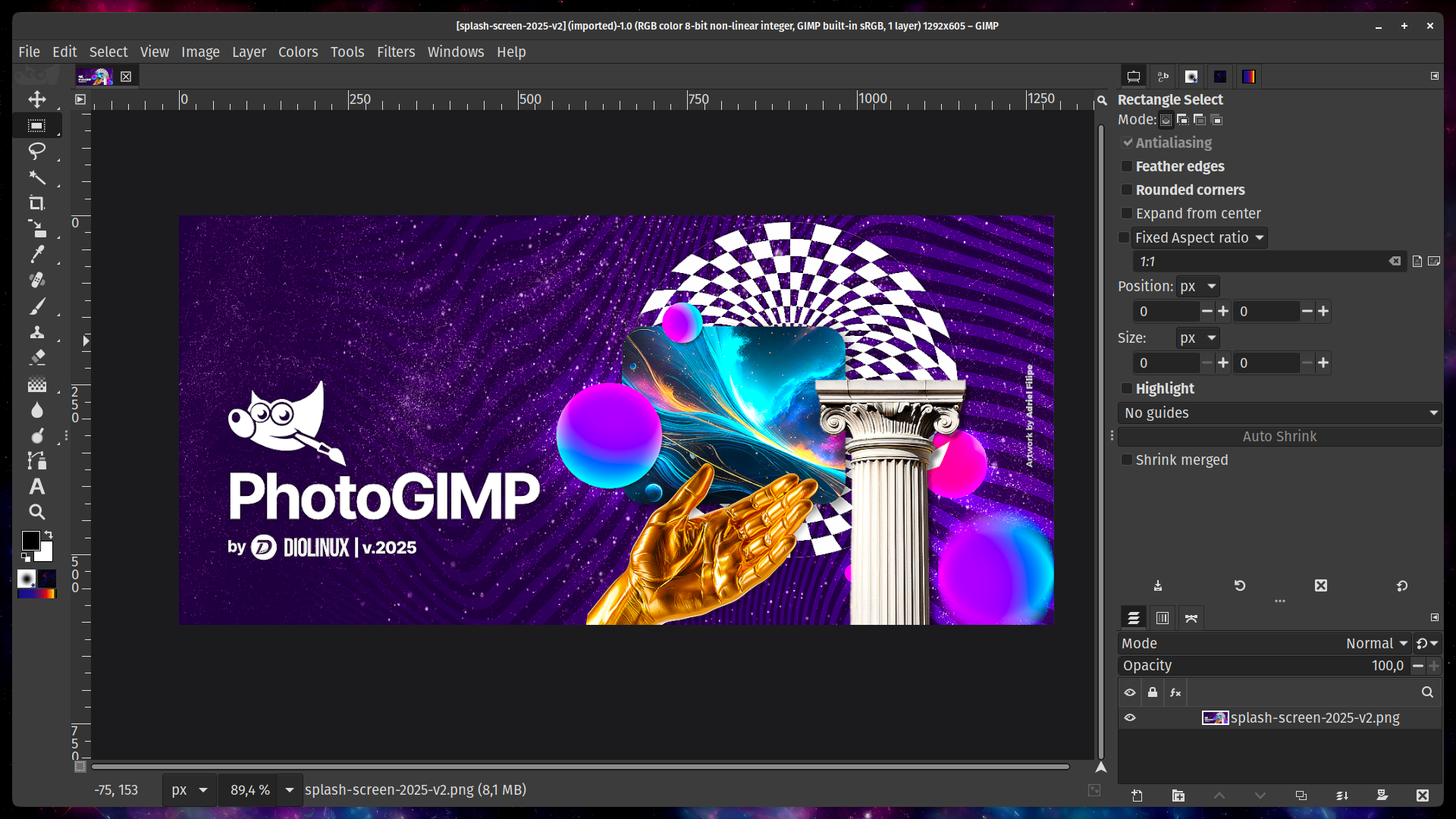
GIMP 3.0 with the PhotoGIMP patch — Photoshop-style dark interface, reorganized toolbox, familiar panel layout. Screenshot from the official GitHub repository.
Out of the box, GIMP uses its own unique interface conventions, shortcuts, and tool ordering. It's powerful but unfamiliar to Photoshop users.
- Multi-window or single-window layout
- GIMP-specific keyboard shortcuts (different from Photoshop)
- System/light theme by default
- Standard GIMP tool ordering (alphabetical)
- Default canvas settings with smaller workspace
- GIMP Wilber splash screen
- Single-window Photoshop-style panel layout
- All major Photoshop keyboard shortcuts (Ctrl+T, Ctrl+J, etc.)
- Dark professional theme optimized for editing
- Maximized canvas space with minimal UI clutter
- Custom PhotoGIMP splash screen
- Tools grouped like Photoshop (Move, Select, Paint, Text)
What is PhotoGIMP?
PhotoGIMP is not a standalone application. It's a configuration patch that transforms GIMP's interface, shortcuts, and tool layout to closely match Adobe Photoshop.
✅ What PhotoGIMP IS
- A free configuration patch for GIMP 3.0+ (not a standalone app)
- Keyboard shortcuts mapped to Adobe's official documentation
- A Photoshop-style tool layout and dark workspace
- An open-source project by Diolinux with 24+ contributors
- Just config files — your brushes, fonts, and plug-ins stay untouched
❌ What PhotoGIMP is NOT
- Not a replacement for Adobe Photoshop
- Not a standalone application or installer
- Not a GIMP plugin or extension
- Not affiliated with Adobe in any way
- Not an executable — it contains zero code, only text config files
📦 What's inside the patch
shortcutsrcKeyboard shortcuts → PhotoshoptoolrcTool configuration & orderingsessionrcWindow layout & panelsdockrcDock/panel configurationgimprcCanvas, grid preferencessplashes/Custom splash screentheme.cssDark UI adjustmentstemplatercPre-defined canvas templatesKey Features
Photoshop Keyboard Shortcuts
All major shortcuts mapped to match Adobe's official documentation. Ctrl+T, Ctrl+J, Ctrl+Shift+N — they all work.
View Full Shortcut Reference Table →Familiar Tool Layout
Tools reorganized to match Photoshop's positions. Feel at home from the first launch.
Dark Professional Theme
Modern dark interface with optimized canvas space for a professional editing experience.
100% Free & Open Source
No subscriptions, no trials, no accounts. Licensed under GPL-3.0.
View source on GitHub →Who is PhotoGIMP for?
PhotoGIMP bridges the gap between Photoshop's familiar workflow and GIMP's powerful free editing capabilities. Whether you're a student, professional, or hobbyist, here's how PhotoGIMP fits into your workflow.
🎓 Students & Beginners
Learning image editing shouldn't cost $252 per year. PhotoGIMP gives you the same keyboard shortcuts and interface layout that professors teach in Photoshop courses — completely free. Follow any Photoshop tutorial using PhotoGIMP and the shortcuts will match. Perfect for graphic design courses, photography classes, and self-study without financial barriers.
🔄 Photoshop Switchers
Tired of Adobe's subscription model? PhotoGIMP lets you keep your muscle memory intact while saving hundreds per year. Ctrl+T for Free Transform, Ctrl+J for Duplicate Layer, Ctrl+Shift+N for New Layer — they all work exactly as you expect. The transition feels natural because the tool layout, panel positions, and keyboard shortcuts all mirror what you've spent years learning in Photoshop.
🐧 Linux Users
Adobe doesn't offer Photoshop for Linux. GIMP is the most capable image editor on the platform, and PhotoGIMP makes it feel professional and familiar. Works seamlessly with Flatpak, Snap, and system package installations. Combined with GIMP 3.0's new non-destructive editing features, Linux users finally have a world-class editing experience without Wine or virtual machines.
💼 Freelancers & Hobbyists
Need quick photo retouching, social media graphics, or web assets without a $20.99/month commitment? PhotoGIMP handles everyday creative tasks beautifully — resizing images for Instagram, removing backgrounds, color correcting photos, creating thumbnails, and designing simple graphics. It runs entirely offline on your machine with zero telemetry or cloud dependencies.
How to Install PhotoGIMP
Installation takes about 2 minutes. PhotoGIMP is not an installer — it's a set of configuration files that you copy into GIMP's settings folder. Here's the quick version for each operating system.
Install GIMP 3.0+
Download GIMP from gimp.org. PhotoGIMP 3 requires GIMP version 3.0 or newer — it does not work with GIMP 2.10 or older versions.
Run GIMP Once & Close
Open GIMP for the first time and let it fully load. Then close it. This generates the configuration folder structure that PhotoGIMP needs to overwrite with its custom settings.
Download & Extract PhotoGIMP
Download the PhotoGIMP ZIP from our download page (sourced directly from GitHub releases). Extract it and copy the 3.0 folder to your GIMP config directory.
Open GIMP — Done!
Launch GIMP and you'll see the PhotoGIMP interface — Photoshop shortcuts, dark theme, reorganized tools. The whole process takes under 5 minutes.
Config paths: Windows: %APPDATA%\GIMP\3.0 • macOS: ~/Library/Application Support/GIMP/3.0 • Linux: ~/.config/GIMP/3.0
Frequently Asked Questions
Is PhotoGIMP free?
Yes, PhotoGIMP is completely free and open source under the GPL-3.0 license. No subscriptions, no trials, no hidden costs.
Is PhotoGIMP safe to install?
Yes. PhotoGIMP is an open-source project hosted on GitHub with 9,500+ stars. It only contains configuration files (shortcuts, layout, theme) — no executables.
Do I need to install GIMP first?
Yes. PhotoGIMP is a patch for GIMP, not a standalone program. Install GIMP 3.0+ and run it once before applying PhotoGIMP.
Why does GIMP look the same after installing PhotoGIMP?
The most common cause is copying files to the wrong directory. Check that you placed the '3.0' folder in the correct config path for your OS.
How do I restore the original GIMP?
Delete the GIMP config folder (3.0) and reopen GIMP — it will regenerate fresh defaults. Or restore your backup if you made one.
Does PhotoGIMP support my language?
PhotoGIMP inherits GIMP's language settings. It automatically uses your system language for the interface.
Can I open Photoshop (PSD) files?
Yes, GIMP can import and export PSD files. Some advanced features like smart objects may not be fully supported.
Can I use PhotoGIMP with GIMP 2.10?
No. PhotoGIMP 3 only supports GIMP 3.0 or newer. GIMP 2.10 uses a different configuration format.
Ready to transform your GIMP?
Download PhotoGIMP and get a Photoshop-like experience in under 5 minutes. Free, open source, no account needed.
Download PhotoGIMP